
Assessing a vendor
Build a questionnaire once, send it, chase it, review the answers, and close with a recommendation that is on the record.
An assessment is a questionnaire sent to a vendor, tracked to submission, reviewed by someone at your end, and closed with a documented conclusion. The last part is the part auditors ask about.
First, a published template
Section titled “First, a published template”Vendors → Questionnaires has three tabs: Sent, Templates and Inbound. Templates is the library.
-
New template, then build it in sections and questions. Question types run from free text and single choice through to certificate and file-upload questions, and each question shows a preview of how the vendor will experience it.
-
Publish when it is ready. Only published templates can be sent — a draft is a work in progress, and the send picker will not offer it.
-
To change a published template later, Save as new draft. The version already in the field keeps working.
Send an assessment
Section titled “Send an assessment”Open the vendor, go to its Assessments tab, and choose New assessment. Pick the assessment type, the published template and an optional due date. That creates a draft.
Then Send. Vendorica generates a portal link for the vendor — they answer in a browser without needing a Vendorica account. You can copy the link at any time from the row’s Copy portal link action if the contact says the email never arrived.
An assessment moves through Draft → Sent → In progress → Submitted → Under review → Closed.
Track the ones in flight
Section titled “Track the ones in flight”The Sent tab is the campaign view for every questionnaire you have sent, filtered by Outstanding, Overdue, Awaiting review and Completed, with per-vendor progress. Reminders can be sent from here — individually, in bulk across a filter, or on an automatic schedule.
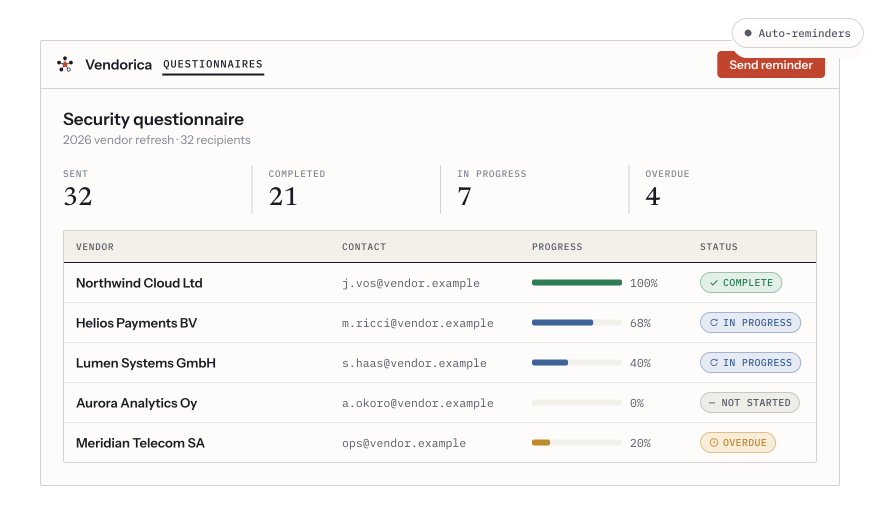
The response tracker: who has been sent what, how far they have got, and which ones are overdue.
Review what comes back
Section titled “Review what comes back”A submitted assessment opens into a review workspace with the answers, a Discussion thread and a Findings tab.
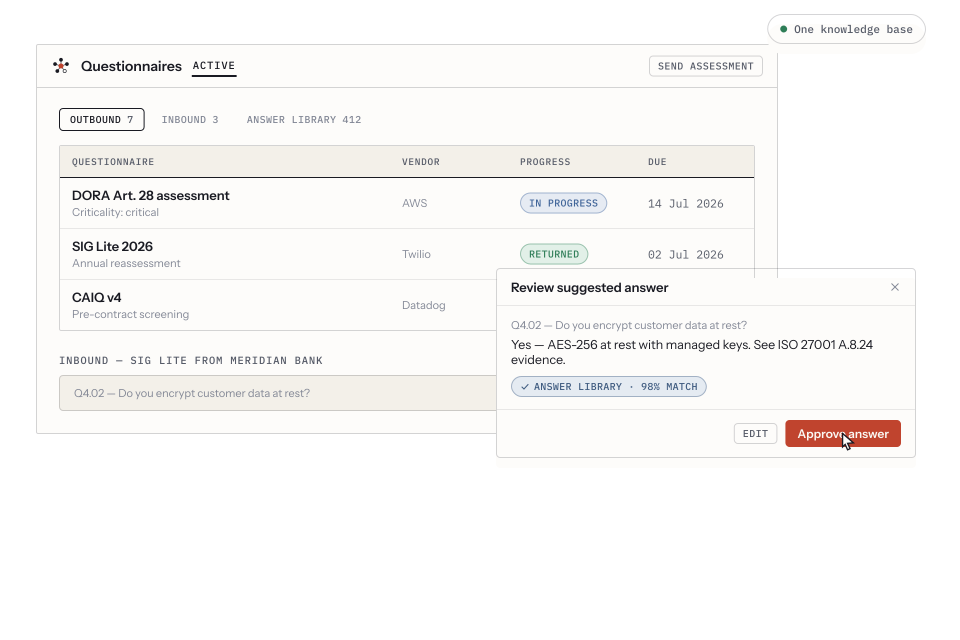
The review workspace. Answers are approved question by question, and a suggested answer from your knowledge base can be accepted or rewritten.
Two things you can do from a specific answer:
- Ask the vendor a question — post it to the discussion and it reaches them in the portal. An internal note stays internal.
- Raise a finding — an answer that is not good enough becomes a tracked item with a severity and an owner, rather than a comment nobody reads. Findings raised here land in the same register as findings from audits and control tests; see Audits and findings.
Close it properly
Section titled “Close it properly”Closing is a two-step sign-off: a recommendation, then a residual risk rating with notes. That is what makes the assessment evidence — a questionnaire with answers and no conclusion tells a reviewer nothing about what you decided.