
Importing your data
One wizard, four steps, and a preview that shows you exactly what will happen before anything is written.
Everything you already have lives somewhere — a spreadsheet, a contract folder, a register you filed last year. Import & Export in the sidebar is where all of it comes in.
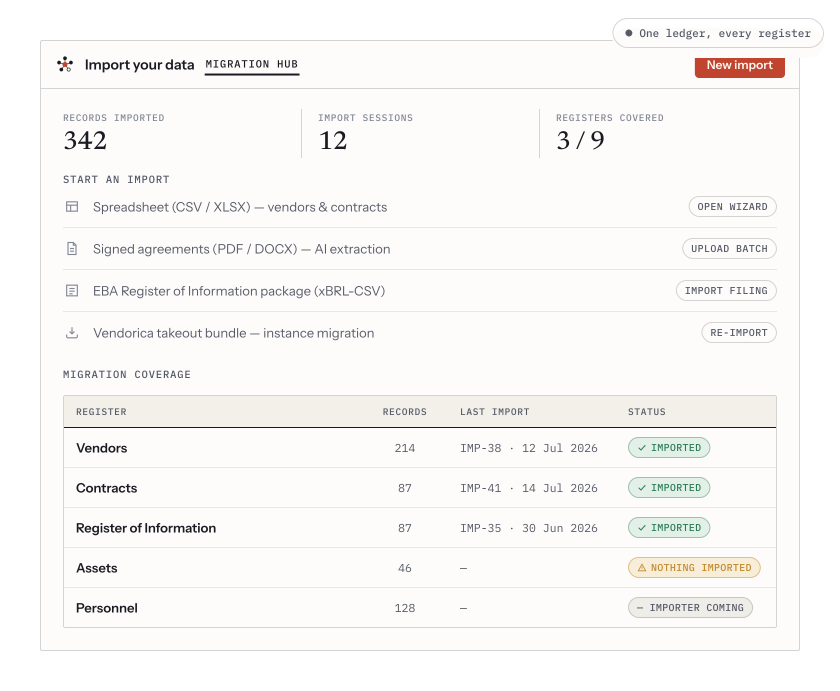
The Import & Export hub: every way in, a per-register coverage checklist showing what you have loaded so far, and one shared import history.
Pick the right way in
Section titled “Pick the right way in”| You have | Use |
|---|---|
| A vendor list in CSV or Excel | Vendors from a spreadsheet |
| A contract register in CSV or Excel | Contracts from a spreadsheet |
| A folder of signed PDFs or Word agreements | Signed agreements |
| An EBA Register of Information you already filed | EBA Register of Information |
| A full export from another Vendorica organization | Vendorica takeout bundle |
The hub also shows migration coverage — which registers hold data and which are still empty — and an import history listing every run, its row counts and its outcome.
The spreadsheet wizard, step by step
Section titled “The spreadsheet wizard, step by step”Vendor and contract imports run the same four-step wizard, so learning one teaches you both.
-
Upload.
CSV or Excel (
.xlsx), one row per record, up to 25 MB. If you would rather start from a known-good shape, Download template gives you a CSV template or an Excel template that carries the allowed values for each list field. -
Map columns.
Match each column in your file to a Vendorica field. Your own column names stay as they are — you match them once, and a sample value from your file is shown next to each so you can see what you are mapping. Unmapped columns are simply ignored, and the wizard tells you how many.
Two decisions live on this step:
- Match existing records by — the field used to recognise a row you already have. For vendors, an identifier beats a name every time.
- What should happen to matches — only create new records, or update existing matches. Blank cells never overwrite an existing value, whichever you pick.
If the mapping is one you will run again, save it as a preset. On a large file, Suggest with AI proposes mappings for the columns you have not matched yet; every suggestion is yours to accept or change.
-
Preview.
Every row is validated and shown with its status before anything is written — what will be created, what will be updated, what is a duplicate and what has an error. This is the step to read properly. A hundred rows flagged the same way usually means one wrong mapping, not a hundred bad rows.
-
Commit.
Only now is anything written. The result lists what was created, updated and skipped, and the run appears in the import history.
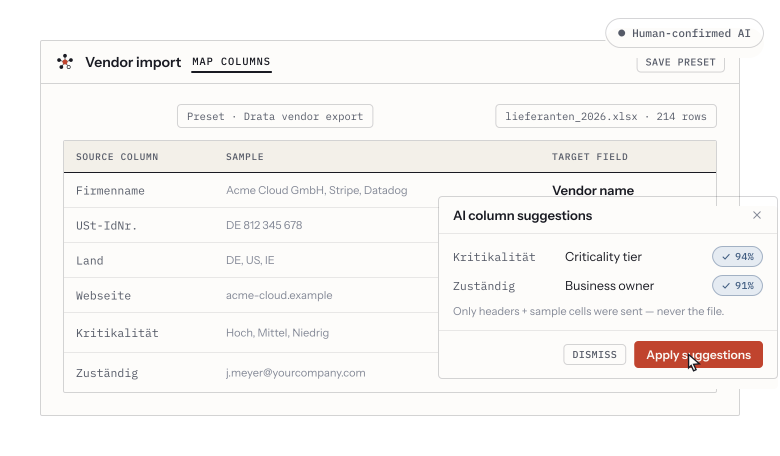
The mapping step. Your spreadsheet’s own column names stay as they are — you match them to fields once, and see a sample value from each before anything is written.
Signed agreements
Section titled “Signed agreements”The Signed agreements route takes the documents themselves. Batch-upload PDFs or Word files; vendor and contract details are extracted for your review, and once you accept them you get draft records with the source document attached. It is a review queue, not an automatic write — nothing is created behind your back.
If you have already filed a Register of Information
Section titled “If you have already filed a Register of Information”Import the xBRL-CSV package you filed and Vendorica rebuilds vendors, contracts and functions from it. For most EU financial entities this is by far the fastest start, because the register you filed is already the reconciled version of your third-party estate.
After the run
Section titled “After the run”- Open Data quality — the completeness and duplicate findings are the fastest read on how well the import landed.
- Spot-check ten records against the source file. If those ten are right, the mapping was right.