
Finding your way around
The sidebar, the search box that opens anywhere, and the three habits that make the product faster to use than it looks.
Vendorica is large. It is also regular: nearly every screen is one of three kinds, and once you can recognise which one you are on, the rest of the product stops being a maze.
The three kinds of screen
Section titled “The three kinds of screen”- A register — a list of one kind of record. Vendors, contracts, controls, policies, risks, findings. Registers filter, sort, export and select in the same way everywhere.
- A record — one row, opened. Records carry tabs across the top: a vendor has Overview, Contracts, Assessments, Incidents, Questionnaires; a control has Evidence, Tests, Framework mappings and more.
- A configuration page — everything under Settings, plus the settings-shaped pages that hang off a feature. These change how the other two behave.
The sidebar
Section titled “The sidebar”The sidebar is the object tree, grouped by the thing you are working on: Vendors, Compliance, Risk, Program, DORA RoI, Personnel, Trust Center. A group is an expander — clicking it opens the list rather than navigating anywhere.
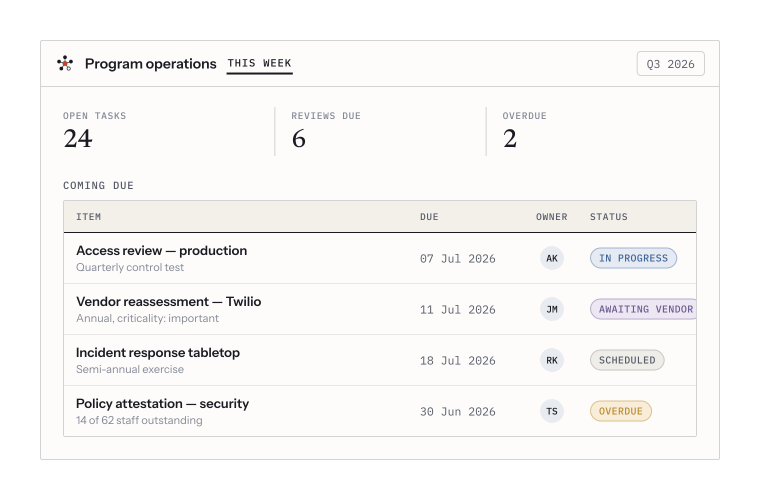
The dashboard is the landing page: what is open, what is coming due, what is overdue, and who owns it.
Ctrl-K is faster than the sidebar
Section titled “Ctrl-K is faster than the sidebar”Press Ctrl-K (⌘-K on a Mac) anywhere in the product to open the command palette — the search box in the top bar opens the same thing, and so does / when you are not typing into a field. Type a few letters of where you want to be, and press Enter.
The palette searches three things at once: your records (a vendor, a control, a policy by name or ID), every destination in the product, and a short list of quick actions — Add vendor, Add policy, Add asset, New person, Adopt a framework, Switch organization. It also remembers the records you visited recently.
Every destination the sidebar offers is in the palette, including ones nested two groups deep. If you find yourself expanding groups to reach a page you open daily, use the palette instead.
Lists: filter, then save the filter
Section titled “Lists: filter, then save the filter”Registers share one filter bar. Set the filters you want, and the view you are looking at is a real URL — you can paste it into a message and your colleague opens exactly what you were looking at.
-
Filter. Add filter pills for status, owner, tier, business unit, dates — whatever the register offers.
-
Save the view if you will want it again. Saved views belong to you and are listed on the register they were saved from.
-
Choose your columns. The column selector decides which columns that register draws for you. It is per browser and affects nobody else.
Where to go next
Section titled “Where to go next”- Setting up your organization — the settings worth changing before you load data.
- Importing your data — bringing your existing registers in.
- Your first 30 minutes — the order that saves the most rework.