
Publishing a Trust Center
A public page that answers the security questionnaire before anyone sends you one — with the documents behind a gate you control.
Your buyers’ security reviews arrive as questionnaires, and most of the questions have the same answers every time. A Trust Center is the public page that answers them once: your posture, your certifications, your sub-processors, and the documents a reviewer wants — released to people who ask, on terms you set.
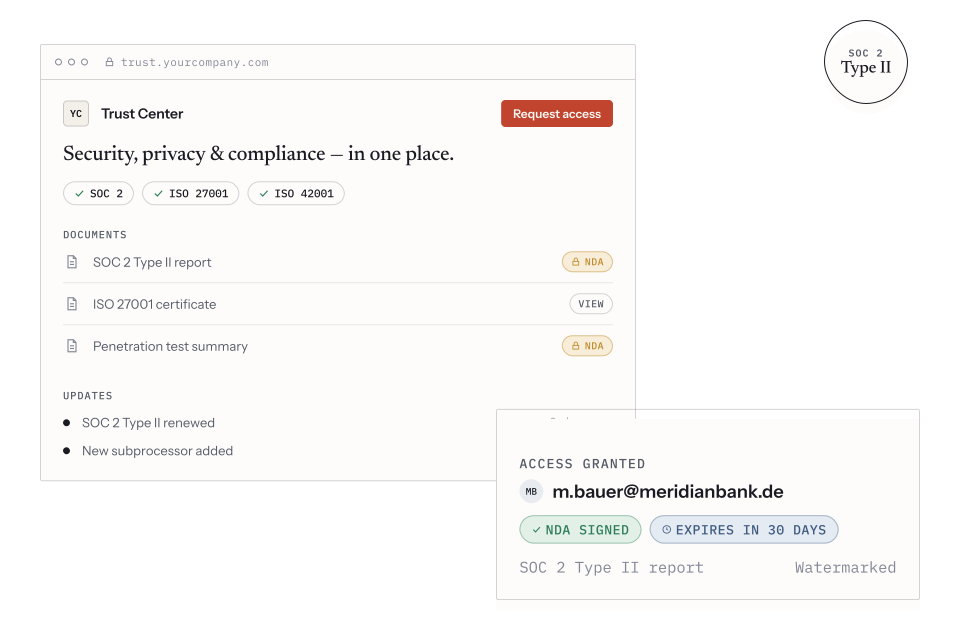
The public page: posture, framework badges, and the document list a visitor requests access to.
Set it up
Section titled “Set it up”The Trust Center group in the sidebar holds one settings page and a set of content pages.
-
Settings — the identity of the page: what it says about you, and the custom domain if you want it on your own. The domain flow walks you through two DNS records: one proving ownership, one routing traffic.
-
Resources — the documents and links visitors browse. Your SOC 2 report, your ISO certificate, your pen-test summary, your architecture overview. Each one carries its own protection level — see Protection levels per document.
-
Framework badges — one row per framework you have adopted, with the certification status, attestation date and renewal cadence a visitor sees. Because the rows come from your adoptions, a badge cannot claim a framework you are not working to.
-
Sub-processors — the vendors you disclose publicly, pinned in the order you want them read. They come from your own register, so the public list and the internal one cannot drift.
-
Updates — the posts that tell subscribers something changed. A new certification, a sub-processor added, an incident closed.
Documents from SharePoint, OneDrive or Google Drive
Section titled “Documents from SharePoint, OneDrive or Google Drive”If your documents already live in a SharePoint library, a OneDrive or a Google Drive, you can publish them from there instead of uploading a copy. On Resources, choose Import from cloud, pick a connected storage account, walk to the file, and choose how visitors get it:
- Copy into Vendorica (synced) — Vendorica keeps a copy in its EU storage and refreshes it on the schedule you set. Visitors can open it even while your own storage is unreachable.
- Serve live from your storage (never stored) — nothing is copied. Each time a visitor opens the document, Vendorica fetches the current version from your storage, applies the same access rules, NDA and watermark as any other document, records the read in the access log, and discards it. A live document uses none of your storage allowance.
To a visitor the two look the same. The difference is where the document is kept, and what happens when your storage is not there: a live document can only be opened while your storage is reachable and the connected account can still read the file.
Copying and serving live are both part of the Trust Center add-on, and both need a document-capable connection under Integrations first. Neither works for a link: a document you only want to point at stays an external link, which visitors open through your Trust Center so the click is still recorded in the access log.
Gating, and who gets in
Section titled “Gating, and who gets in”Most companies publish the posture and gate the documents. Three mechanisms:
- Access requests — a visitor asks, you approve or reject, and the request queue carries a pending count on the sidebar so it does not rot.
- Access rules — auto-approval for requests matching conditions you set (a corporate domain, say). All conditions must hold; for an either/or, write a second rule.
- NDA versions — a click-through NDA a visitor accepts before documents are released. Versions are kept and activated deliberately, so you can always say which text somebody agreed to.
Every live access link, whether requested or sent by you, is listed under Visitor tokens and can be revoked, which cuts that visitor off immediately.
Manage on the same row changes a grant without sending a new link:
- Which documents it reaches — take back one report and leave the rest, add a restricted document, or switch between the standard set and a hand-picked list. A document the grant still names after you unpublished it is shown, so you can drop it too.
- When it expires — set a new expiry, counted in days from today, to extend access, shorten it, or bring back a link that has already expired.
The visitor keeps the link they already have, and the change applies from their next click. A revoked link cannot be managed back to life; send a new one instead.
Gated documents download through Vendorica itself rather than a temporary storage link, so revoking or narrowing access also stops a download link the visitor copied a moment earlier.
Deciding requests from another system
Section titled “Deciding requests from another system”If your team decides access in a ticketing or access-management tool, such as Jira or ServiceNow, that tool can approve or reject requests through the Vendorica API instead of someone doing it in the inbox. It needs an API key with Write on Trust Center access, created under Settings → API Keys by someone who can decide requests themselves.
A request decided this way shows Decided via API key and the key’s name, not a person, and the audit trail records the key. If the other system sent its own reference, such as a ticket number or link, it appears as External reference beside the decision. The visitor still receives their access link by email, and the key never sees it. How to set it up: Decide Trust Center access from Jira or any other system on developer.vendorica.com.
Watermarks on gated documents
Section titled “Watermarks on gated documents”Each gated PDF is stamped for the visitor who receives it, at the moment it is issued — whether they download it, open it in the viewer or take it in a ZIP. The stamp names the reader (their name, company and email, where the request captured them), the time and a short reference that leads back to the access in the log. The stored document never changes, and a PDF that is already digitally signed is left as it is so its signature stays valid. Images and other file types are not stamped.
On the Policies tab of the Trust Center Settings you choose the wording and the placement: a
footer band, a large faint diagonal across each page, or both, with the
diagonal’s opacity. The text takes placeholders such as {visitor_name}
or {visitor_company}; wrap a phrase in square brackets — [, {visitor_company}]
— and it is left out for a visitor without a company instead of leaving a
stray comma. Whatever you draw must include {reference} and
{timestamp}, so a leaked copy can always be traced. The preview beside
the form shows the stamp for a sample visitor, and you can download a
sample PDF before saving. Watermarking is part of the Trust Center add-on.
Protection levels per document
Section titled “Protection levels per document”Different documents deserve different terms. In the resource editor, every document gets three settings — including a document served from your own SharePoint, OneDrive or Google Drive, which follows them exactly as a document you uploaded does:
- Who can open it.
- Public — anyone visiting your Trust Center.
- Approved visitors — included whenever you approve a request with the standard set of documents. This is where a SOC 2 report usually sits.
- Restricted — never part of a standard approval. A visitor gets it only when you name it: by ticking it when you approve, by sending it in a share, or in an access rule. Use it for the penetration test or the architecture diagram. Making a document restricted also takes it away from approvals you have already granted.
- Require a signed NDA. The visitor signs your NDA before this document opens. A certificate can sit behind approval without an NDA while the SOC 2 report waits for one — a visitor sees the documents that need no NDA straight away, and the others are marked until they sign. This setting only has an effect while the NDA requirement is switched on in your Trust Center settings; switching that off lifts the NDA from every document at once.
- Allow download. Switch it off and the document becomes view only: visitors read it in the browser viewer, and it is left out of Download all.
Approving with a choice of documents. The approval dialog starts with the standard set — every document for approved visitors, including ones you add while the link is valid. If the visitor asked for restricted documents, those are already ticked; tick or untick others before you approve. Choose Only the documents I pick to grant a fixed list instead. The request page shows which documents were asked for, and the audit trail records exactly what each approval granted.
Letting visitors ask for restricted documents. When you list gated documents on your public page (the setting on the Policies tab), restricted ones appear as Available on request, and the request form lets a visitor tick the ones they need.
Access rules and restricted documents. A rule grants the standard set unless you tell it otherwise; it can also add restricted documents, or grant only the ones you pick. If a visitor asks for a restricted document that the matching rule does not grant, the request is not approved automatically — it waits for you.
Publishing in more than one language
Section titled “Publishing in more than one language”The page’s own buttons and labels already appear in your visitor’s language. Content languages do the same for the words you wrote: document titles and descriptions, updates, the FAQ, your tagline and landing text, and your custom pages.
-
In Settings → Languages, choose the language your existing text is written in, then tick each language you want to publish alongside it — German and English, say.
-
Open any document, update, FAQ or custom page and fill in the Translations fields for each language. Your original text shows in each empty field so you can see what you are translating.
Visitors read the page in their browser’s language when you publish it, and the language switcher in the page header lets them change it. Anything you have not translated falls back to your main language, field by field — so a half-translated page is still the whole page, never a blank one.
Each published language has its own address (the main one, plus ?lang=de
and so on), and the page tells search engines which address belongs to which
language, so a German buyer searching in German finds the German page.
Who read what — the access log
Section titled “Who read what — the access log”Access log, in the same sidebar group, lists every time a visitor with access viewed or downloaded one of your documents: who it was, which document, when, how it was delivered (the document page, the in-browser viewer, a download, a bulk ZIP or an external link) and whether the file was watermarked. A document served live from your storage is logged the same way, with a fingerprint of the exact version the visitor received. It is the record a buyer’s security team or your auditor asks for when they want to see that your gated documents are controlled, and it is included in every plan.
- It records the document as it was served. Rename a report or upload a new version and the log still shows the title and version the visitor received. A document you have since deleted keeps its history and is marked as deleted.
- Filter it, save the filter, export it. Narrow by visitor, by read type, by delivery channel or by date, or click a row to see only that document or that visitor. Save the views you re-run for each audit period, and export the current filter as a CSV for the working papers.
- Anonymous reads are not in it. A stranger reading a public document is never recorded, and network addresses are kept only as a shortened prefix — the log is about the people you gave access to.
Seeing the log needs the Trust Center analytics permission, the same one the visitor dashboard uses, because which prospect opened your SOC 2 report is itself sensitive.
The assistant
Section titled “The assistant”The Trust Center can answer visitors’ questions from your published content. Its Activity page reports what people asked and — the useful half — which questions your published content could not answer. Read that list monthly: it is a to-do list for your Trust Center written by the people evaluating you.
What it is worth
Section titled “What it is worth”Some of the reporting here is plan-gated, and the page says so where it is not on your plan; see vendorica.com/pricing for what each plan includes. The reporting answers two questions: how much questionnaire volume the Trust Center deflected, and which deals its visitors were attached to — the second read against your own CRM, and correlation rather than cause, which the page states outright rather than letting you conclude it.
Keep it current
Section titled “Keep it current”A Trust Center is a public claim about your security. That means:
- An expired certificate on a badge is worse than no badge.
- A sub-processor list that omits one you added last quarter is a disclosure problem, not a content problem.
- An update costs a paragraph and is the difference between a page people trust and a page they check the date on.